Image Splitter – Split Images into Multiple Parts Online Free
Split your image into smaller pieces, equal parts, or custom grid sections with the free Image Splitter Online from ImageToolsZone. Create 2×2, 3×3, 4×4, or custom image grids in just a few clicks.
📋 On This Page
What Is an Image Splitter?
An image splitter is an online tool that divides one image into multiple smaller images based on a selected grid, number of rows, or columns. Instead of manually cropping the same picture again and again, you can use an image splitter to create evenly divided sections from a single image.
Whether you want to split image online into 9 parts, create an Instagram grid, divide a photo into equal tiles, or separate a large image into smaller sections, this tool makes the process quick and simple.
Split Into Equal Parts
Divide images into 2, 4, 9, 16 or custom sections with perfect precision
Custom Grid Layouts
Choose from 2×2, 3×3, 4×4 grids or create your own rows and columns
Lightning Fast
Process images instantly without uploading to external servers
Mobile Friendly
Split images on any device - desktop, tablet, or smartphone
Why People Love Our Image Splitter
How to Use Image Split Tool
Follow these simple steps to split your images into perfect grids, tiles, or custom sections in seconds.
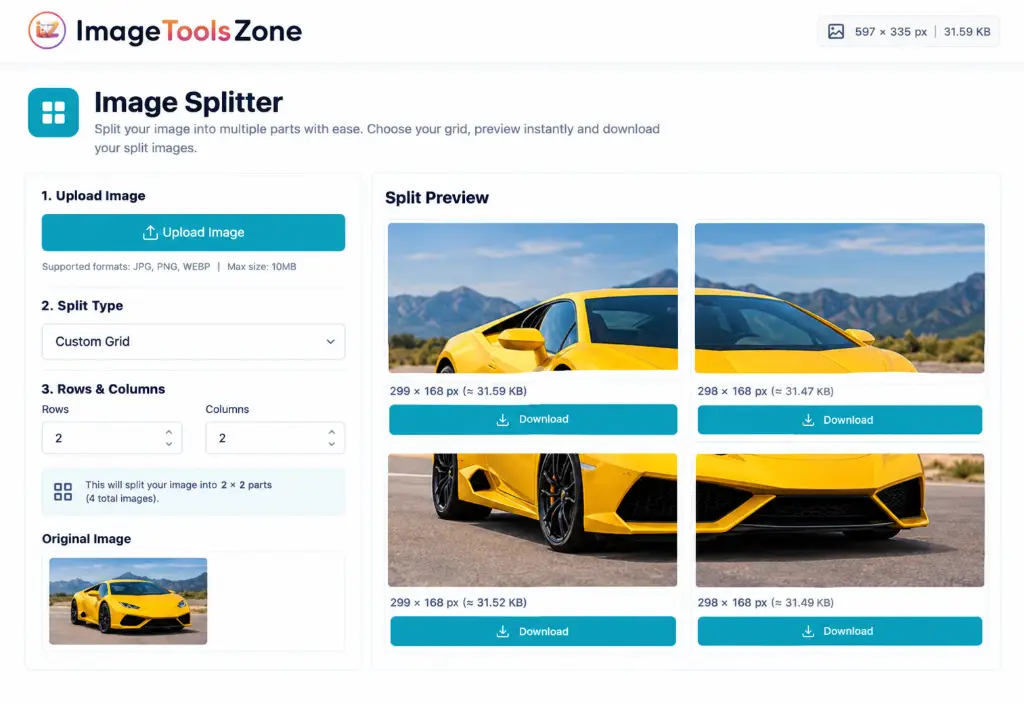
Upload Your Image
Click the "← Change Image" button in the top-left corner to upload your photo. You can also drag and drop your image directly into the tool.
Supported formats: JPG, PNG, WebP
File info displayed: Dimensions (597 × 335 px) and size (31.59 KB)
Upload area shows image dimensions and file size in top-right corner
Select Split Type & Grid
Choose from preset layouts or create a custom grid:
- Quick buttons: Click 2×2, 3×3, 3 Vert (vertical), or 3 Horiz (horizontal)
- Custom Grid: Use dropdown for advanced options
- Manual input: Enter exact rows and columns you need
Configure Rows & Columns
Fine-tune your grid by entering specific numbers:
Example: 2 rows × 2 columns = 4 image pieces
💡 Pro Tips:
- For Instagram grid: Use 3×3 (9 posts)
- For simple split: Use 2×2 (4 pieces)
- For panoramic: Try 1×3 or 3×1
- Custom layouts: Mix any rows/columns
Check Real-time Preview
Watch your image split instantly as you adjust settings. The preview section shows:
- All split pieces arranged in grid layout
- Individual dimensions for each piece (e.g., 299×168)
- Download button under each section
- Visual representation of cut lines
All pieces in one compressed folder
Download Your Split Images
Choose your download method:
Click the blue "Download ZIP" button in the top-right to get all pieces in one folder
Click "Download" under each preview image to save specific pieces only
Quick Reference: Popular Grid Layouts
Understanding the Tool Interface
Top-right corner displays your image dimensions (597 × 335 px) and file size (31.59 KB) for reference.
Select "Custom Grid" for manual control or choose from preset vertical/horizontal splits.
One-click access to common layouts: 2×2, 3×3, 3 Vert (vertical strips), 3 Horiz (horizontal strips).
Manual number inputs to specify exact grid dimensions. Type any number for custom splits.
Live preview shows all split pieces with individual dimensions and download buttons for each section.
Blue button in top-right corner downloads all split images at once in a compressed ZIP folder.
Split Image Into Different Grid Patterns
Understanding different grid layouts helps you split photo into tiles online effectively. Let's explore the most popular configurations:
Split Image Into 3×3 Grid
A 3×3 grid divides one image into 9 separate pieces. This is incredibly useful when you want to create a large visual divided across multiple posts or create a tiled image layout. When you split image into 3x3 grid online, you get:
- 3 rows × 3 columns = 9 image pieces
- Perfect for Instagram grid posts
- Ideal for creating puzzle-style layouts
- Great for panoramic photo displays
If your goal is to split image into 9 equal parts online, simply select the 3×3 option and create the individual sections instantly.
Split Image Into 2×2 Grid
A 2×2 grid divides one image into 4 smaller sections. This classic layout works perfectly for:
Split Image Into 4×4 Grid
Need more image sections? A 4×4 grid divides your image into 16 tiles. This advanced configuration is perfect for:
- Large graphics that need detailed segmentation
- Creative layouts requiring maximum flexibility
- Puzzle-style images for interactive content
- Design planning and wireframing
- Creating mosaic effects from single photos
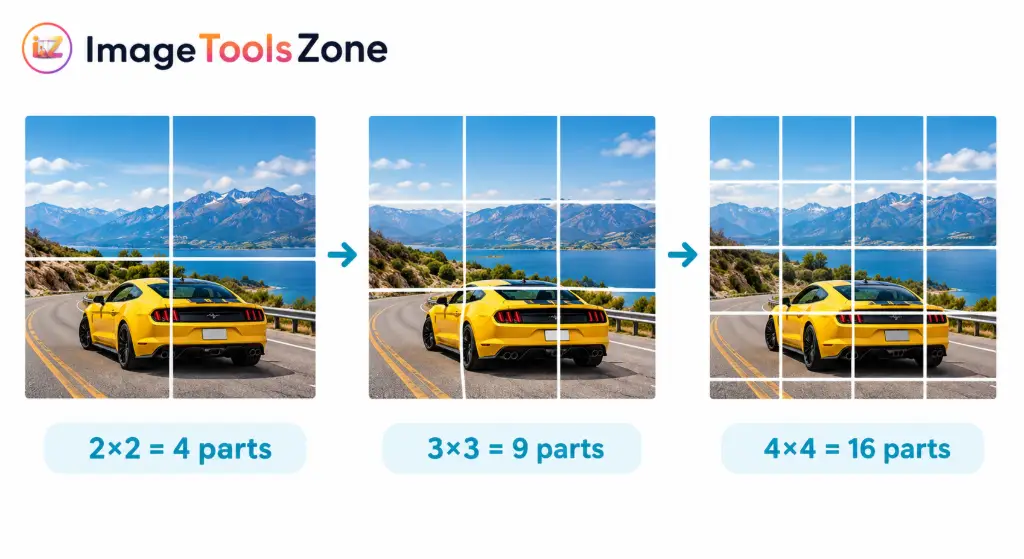
Image Splitter for Instagram Grid Posts
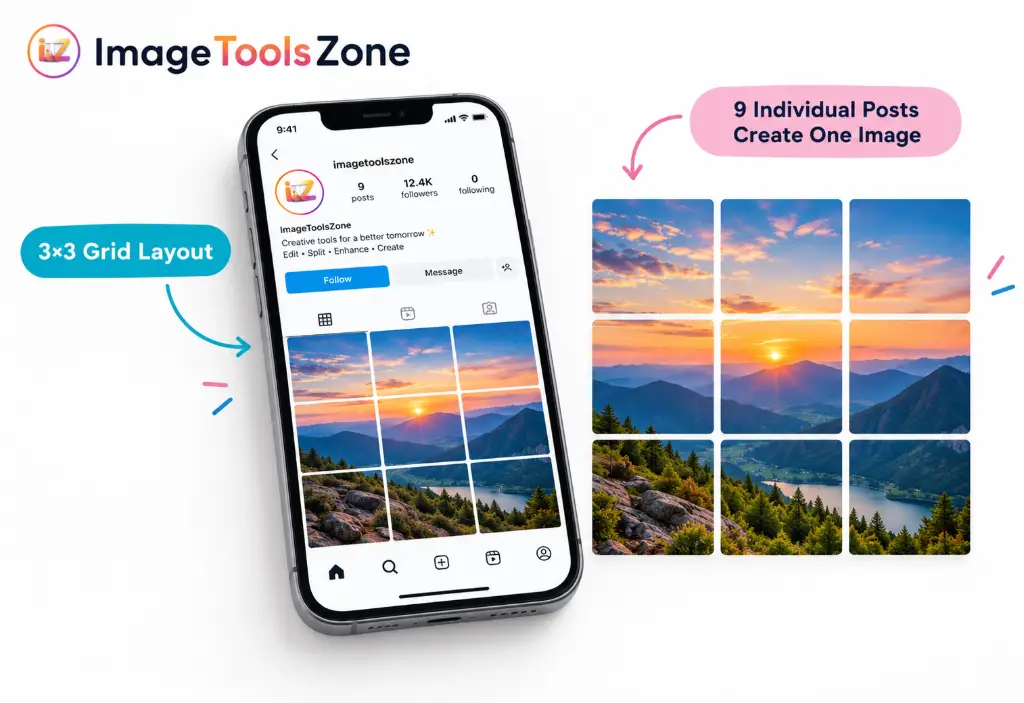
Social media creators love using our tool to split image for Instagram grid layouts. Here's how it transforms your content strategy:
An image splitter can be useful for creating Instagram grid-style content that stands out. You can divide a large image into multiple square or rectangular sections and use the individual pieces for your social media content.
Create Scroll-Stopping Grids
Design cohesive 3×3 or 6×6 grids that tell a story across multiple posts
Maintain Perfect Alignment
Each piece maintains exact dimensions for seamless Instagram feed display
Boost Engagement
Unique grid layouts attract more profile visits and follower interaction
Important Instagram Tips:
- A 3×3 image grid creates 9 pieces from one image - perfect for a complete profile grid takeover
- Before creating a grid for Instagram, check the current image dimensions and posting requirements (typically 1080×1080px for square posts)
- Your source image should have enough resolution to produce the desired quality after splitting
- Consider how the grid will look on mobile vs desktop - test before posting all pieces
Common Use Cases for Image Splitting
Sometimes you have one large image but need several smaller image files. An image splitter helps you turn one source image into multiple separate sections for various applications:
Why Use Our Online Image Splitter?
Save Valuable Time
Manually cropping an image into several equal sections can take unnecessary time - especially when you need precision. An image splitter simplifies the process from hours to seconds. What used to require opening Photoshop, calculating dimensions, and cropping repeatedly now happens with one click.
Create Consistent Sections Every Time
Using a grid helps create image pieces with consistent boundaries instead of manually estimating each crop. No more uneven edges or misaligned sections. Every piece is mathematically perfect, ensuring professional results whether you're splitting image into equal parts online free for business or personal projects.
Perfect for Social Media Marketing
Create image sections for Instagram grids, carousel-style content, Pinterest pins, and other social media designs. The tool understands modern social media needs and delivers exactly what content creators require.
Ideal for Creative Projects
Split images for puzzles, collages, presentations, website layouts, and design experiments. The possibilities are endless when you can quickly visualize different grid configurations.
No Complicated Software Needed
You do not need advanced photo-editing skills or expensive software just to divide an image into multiple sections. Our browser-based tool works instantly - no downloads, no installations, no learning curve.
Image Splitter vs. Manual Cropping: The Real Difference
Let's be honest - manual cropping is tedious. Here's why smart creators choose automated splitting:
| Feature | Manual Cropping | Our Image Splitter |
|---|---|---|
| Time Required | 15-30 minutes per image | Under 60 seconds |
| Consistency | Prone to human error | Pixel-perfect precision |
| Learning Curve | Requires software knowledge | Intuitive - works immediately |
| Cost | Expensive software licenses | Completely free |
| Workflow | Open software → Select area → Crop → Save → Repeat × N times | Upload → Choose grid → Download all at once |
An image splitter provides a more consistent workflow: One image → Select grid → Split → Multiple image pieces. This is particularly useful when you need several evenly divided sections from the same image.
Pro Tips for Better Image Splitting Results
Start with High-Resolution Images
Always begin with a sufficiently large image when you need high-quality output. Splitting reduces the pixel dimensions of each piece, so starting with 4K or high-res photos ensures each section remains crisp and clear.
Choose the Right Grid for Your Purpose
Think about how many pieces you actually need before selecting the grid. For example, use 3×3 when you need 9 pieces and 2×2 when you need 4 pieces. Don't over-complicate - sometimes simpler grids create more impact.
Protect Important Content
If your image contains text, faces, logos, or products, check where the grid lines will appear before splitting. Position your image so critical elements aren't cut awkwardly. The real-time preview helps you catch these issues instantly.
Preview Before Downloading
Always review the resulting sections to make sure important visual elements haven't been divided in an undesirable location. Our real-time preview shows exact dimensions and lets you verify everything looks perfect before you download.
Consider Aspect Ratios
For Instagram, stick to square (1:1) or vertical (4:5) ratios. For YouTube thumbnails, use 16:9. Matching platform specifications before splitting saves time and ensures your content displays correctly everywhere.
Frequently Asked Questions
An image splitter is a tool that divides one image into multiple smaller sections using a grid, rows, or columns. You upload your photo, choose how many rows and columns you want (like 2×2 for 4 parts or 3×3 for 9 parts), and the tool automatically cuts your image into equal pieces. Each piece becomes a separate downloadable image file, maintaining the original quality.
Yes! Simply select the 3×3 grid option to split an image into 9 equal parts online. This creates 3 rows and 3 columns, giving you 9 perfectly equal sections. This is one of the most popular choices for Instagram grid posts and creative photo layouts.
To split an image into 4 equal parts, use the 2×2 grid option. This divides your image into 2 rows and 2 columns, creating 4 perfectly equal quadrants. It's perfect for before/after comparisons, product showcases, or creating simple collages.
Absolutely! Our image splitter is perfect for creating Instagram grid layouts. The 3×3 grid is especially popular for creating cohesive profile grids where 9 separate posts form one large image. Just make sure your original image has the right dimensions (typically 3240×3240 pixels for a 3×3 grid of 1080×1080 posts) for best results.
Yes, our image splitter is 100% free with no hidden costs. You can split as many images as you want, create unlimited grids, and download all your split images without paying a cent. There are no watermarks, no registration required, and no usage limits.
Our tool supports all major image formats including JPG, JPEG, PNG, WEBP, and GIF. You can split photos, screenshots, graphics, and illustrations. The split images maintain the same format as your original upload, ensuring compatibility with your workflow.
No, splitting an image doesn't reduce quality. Each section maintains the same resolution and clarity as the corresponding area in your original image. However, each piece will naturally have smaller dimensions (fewer pixels) since it's only a portion of the original. If you start with a high-resolution image, your split sections will remain sharp and clear.
Yes! Our image splitter is fully responsive and works perfectly on mobile devices, tablets, and desktop computers. The interface automatically adjusts to fit your screen size, so you can split images whether you're on an iPhone, Android phone, iPad, or computer.
After splitting your image, click the "Download ZIP" button to get all sections in one compressed folder. This is the fastest way to get all your split images. Alternatively, you can download individual pieces by clicking the "Download" button under each preview thumbnail if you only need specific sections.
Yes! Select the "Custom Grid" option from the split type dropdown, then enter any number of rows and columns you need. Whether you want a 5×7 grid (35 pieces) or 10×10 grid (100 pieces), you have complete control over the layout. The real-time preview shows you exactly how it will look before you download.
Yes, your privacy is protected. Images are processed locally in your browser or on secure servers, and we don't store your uploaded images permanently. Once you download your split images or close the browser, the files are automatically deleted. Your photos remain private and secure.
Ready to Split Your Images?
Join thousands of creators, marketers, and designers who use our free image splitter daily.
No registration required • No watermarks • Instant results
Start Splitting Images Now - It's Free!Start Creating Amazing Split Image Layouts Today
Whether you're a social media manager creating stunning Instagram grids, a web designer building responsive layouts, an educator preparing visual materials, or just someone who loves creative photo projects, our image splitter gives you the power to split image online quickly and professionally.
Stop wasting time with manual cropping and complicated software. Experience the simplicity of one-click image splitting with perfect precision every time. Upload your image, choose your grid, and create beautiful split layouts in seconds - not hours.
Try the Free Image Splitter Online Now and Transform Your Images!