Merge Multiple Images into One Image Online Free
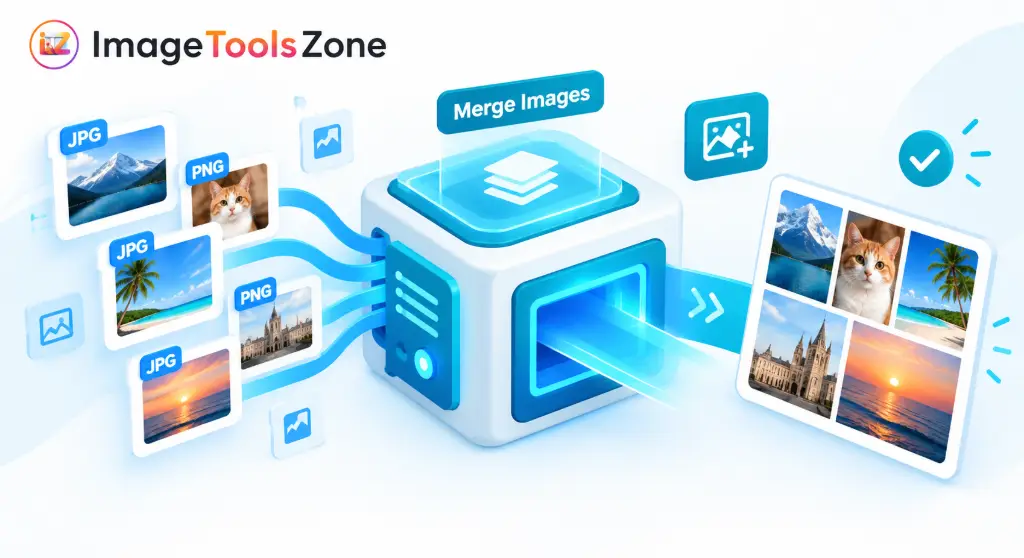
Need to merge images into one quickly and effortlessly? ImageToolsZone's free merge images online tool lets you combine two or more photos, screenshots, JPGs, PNGs, and WebP images into a single, polished file. Whether you want to merge two images side by side, stack receipts vertically, or build a complex photo grid, our platform handles it seamlessly. Choose a horizontal, vertical, grid, collage, masonry, or automatic layout, adjust spacing and background settings, and download your finished image in PNG, JPG, or WebP format.
No Photoshop or complicated software is required. Upload your images, arrange them exactly how you envision, customize the canvas, and create your merged image in just a few clicks. It is the fastest way to combine multiple images without sacrificing quality or dealing with steep learning curves.
What Can You Do With Our Image Merger?
Our tool is built to handle a wide variety of visual tasks. Whether you are a marketer, student, developer, or casual user, you can easily combine photos into one tailored composition. Here is a breakdown of the specific layouts and workflows you can achieve:
Merge Two Images Side by Side
Combine two photos horizontally to create before-and-after comparisons, product variations, or simple side-by-side photo combinations. This is the most direct way to put two pictures side by side for immediate visual impact.
Combine Images Vertically
Stack multiple screenshots or photos into one long, continuous image. This is perfect for tutorials, text message conversations, receipts, scrolling webpages, and technical documentation.
Create an Image Grid
Arrange several images into neat rows and columns to create a clean photo grid or contact sheet. Ideal for showcasing product collections or event highlights uniformly.
Make a Photo Collage
Combine multiple pictures into a creative, dynamic collage. Customize spacing, background colors, borders, and positioning to merge photos into one picture with artistic flair.
Create a Masonry Layout
Arrange images with different dimensions while maintaining their natural proportions. The masonry layout prevents awkward stretching, making it perfect for Pinterest-style boards.
How to Use the Image Merge Tool
Getting started with our merge tool is simple. Below is a visual walkthrough of the interface and a step-by-step guide to help you combine your images like a pro — no design experience required.
Step-by-Step: How to Merge Your Images
Upload Your Images
Click the purple Choose File button at the top right of the tool, or drag and drop your images directly into the workspace. You can upload multiple files at once — JPG, PNG, WebP, BMP, and GIF are all supported.
Pick a Layout
Choose how your images should be arranged using the layout buttons at the top of the canvas:
Customize the Style
Open the Style tab on the right panel to fine-tune your merged image. You have full control over:
- Padding / Gap: Adjust the space between images using the slider (e.g., 10px for a clean look).
- Border Width & Color: Add a frame around each image. Set width to 0px for a borderless look.
- Background: Choose a solid color (like #FFFFFF for white) or enable Transparent Canvas for PNG exports.
- Corner Radius: Round the corners of each image for a softer, modern appearance.
- Drop Shadow: Add depth to your images with a subtle shadow effect.
- Alignment: Keep Auto-Center and Preserve Aspect Ratio checked to prevent distortion.
Preview & Zoom
The center canvas shows a live preview of your merged image on a transparent checkered background. Use the zoom controls below the layout bar to:
- − / + buttons to zoom in or out
- Fit button to auto-fit the canvas to your screen
- ⧉ button to duplicate the view
- ⛶ button for fullscreen preview
Save & Download
Once you are happy with the result, click the green Save button at the top right. A dropdown will let you choose your output format and quality settings before downloading the final merged image to your device.
💡 Quick Workflow Tip
For the best results, prepare your images before merging. Use our free background remover to clean up product photos, or our resize tool to make all images the same height before combining them horizontally. This creates a perfectly uniform final image.
Interface Quick Reference
Choose the Right Image Layout
Selecting the correct arrangement is crucial for readability and visual appeal. Use this quick reference guide to decide how to combine two images into one or manage larger batches:
| Layout | Best For |
|---|---|
| Horizontal | Before & after photos, direct comparisons, product images, and side-by-side portraits. |
| Vertical | Long screenshots, step-by-step tutorials, text message threads, and receipts. |
| Grid | Multiple photos, uniform product collections, real estate listings, and contact sheets. |
| Collage | Creative photo arrangements, social media mood boards, and event highlights. |
| Masonry | Photos with different dimensions (like Pinterest) where maintaining natural aspect ratios is critical. |
| Auto | Quick, automatic image arrangement when you want the algorithm to optimize spacing for you. |
Not sure which layout to choose? Start with Auto and adjust the arrangement until your images look exactly the way you want. You can always tweak the spacing and borders afterward.
Why Use ImageToolsZone to Merge Images?
There are countless ways to join images together, but our platform is built with specific user benefits in mind. We focus on speed, quality, and accessibility:
- 100% Free to use: Merge images without paying subscription fees for basic image-combining tasks.
- No software installation: Work directly from your browser. No downloads, no bloated applications.
- Multiple layouts: Choose horizontal, vertical, grid, collage, masonry, or auto to fit your exact need.
- Multiple output formats: Export seamlessly as PNG, JPG, or WebP based on your project requirements.
- Customize your canvas: Full control over background color, padding, border, spacing, and overall dimensions.
- Preserve image proportions: Keep your images looking natural with strict aspect-ratio controls. No awkward stretching.
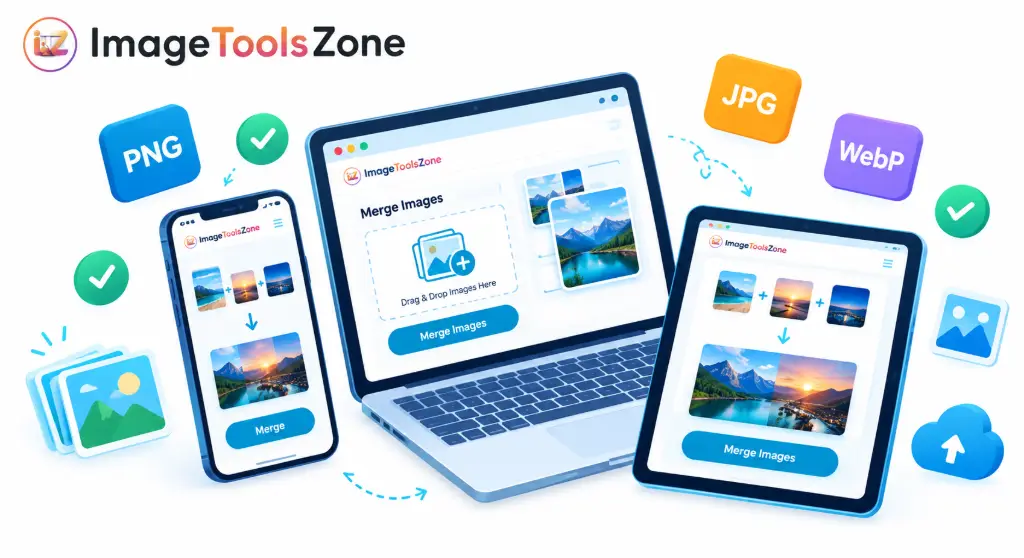
- Cross-device compatibility: Use the tool flawlessly from desktop, tablet, or mobile browsers.
- Zero complicated workflows: Upload, arrange, customize, and download. That is it.
Why Do People Merge Images?
Understanding real-world applications helps you get the most out of this tool. Here is a deep dive into why professionals and everyday users alike rely on our platform to merge photos online:
Before and After Comparisons
Put before and after photos next to each other to show changes clearly. Fitness trainers, home renovators, and photo editors use this to demonstrate tangible progress or the impact of their work.
Social Media Posts
Combine multiple photos into one image for Instagram carousels, Pinterest graphics, Twitter threads, and Facebook visual content. A single, well-merged image often gets higher engagement than scattered posts.
Product Comparisons
Show different product colors, angles, features, or versions in one unified image. E-commerce sellers do this to reduce the number of clicks a buyer needs to make before purchasing.
Screenshots & Documentation
Combine multiple screenshots into one long image for software tutorials, bug reports, customer support tickets, or technical documentation. It provides context that isolated screenshots lack.
School & Education
Students and teachers create visual assignments, study materials, diagrams, and image-based presentations. Merging charts and text snippets simplifies complex topics.
Business Presentations
Combine charts, screenshots, product images, and other visuals into a single, cohesive slide asset. It keeps presentations clean and prevents visual clutter.
Real Estate
Place multiple property photos (living room, kitchen, exterior) into one organized image for listings and marketing materials. This gives potential buyers an immediate, comprehensive view.
Photography Portfolios
Create contact sheets, portfolios, comparisons, and photo collections to send to clients for quick review without requiring them to download dozens of individual files.
Pro Workflow Tip: If you are merging product photos for an e-commerce store, consider using our free background remover tool online first. Removing distracting backgrounds before merging ensures your final collage looks incredibly professional and uniform.
Merge Images Without Photoshop
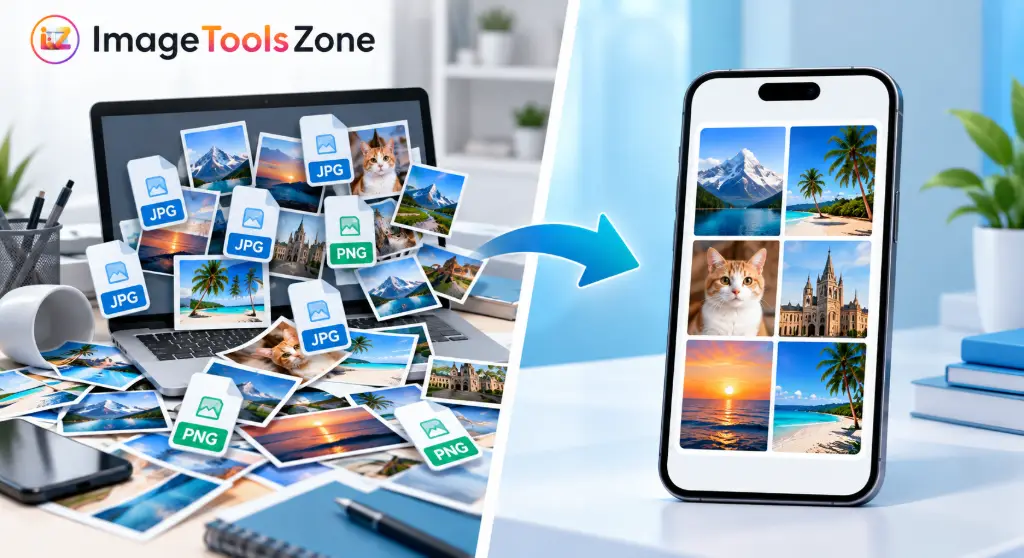
Let’s be honest: you do not need expensive, heavy software like Photoshop just to combine pictures into one image. For straightforward image-merging tasks, a dedicated online image merger is significantly faster and more efficient.
Photoshop requires a steep learning curve, significant system resources, and a paid subscription. In contrast, our tool allows you to upload your photos, choose a layout, customize the spacing and canvas, and download the result in under a minute. This is especially useful when you only need to put two images together, create a quick photo comparison, combine screenshots, or make a simple collage on the go.
If you need to do minor touch-ups before merging, our professional image editor without watermark is available to help you adjust brightness, contrast, or crop individual files before they enter the merger.
Merge Your Images Without Photoshop →Which Image Format Should You Use?
When you merge JPG images or merge PNG images, the final output format matters. ImageToolsZone lets you choose the output format after arranging your images, so you can create the file that best matches your intended use. Here is how to decide:
PNG (Portable Network Graphics)
Best for screenshots, graphics, text-heavy images, and images where transparency is important. PNG uses lossless compression, meaning your merged image will retain crisp edges and exact colors, though the file size might be slightly larger.
JPG / JPEG
Good for photographs and situations where a smaller file size is useful. If you are merging high-resolution photos for email or web upload, JPG provides an excellent balance of quality and manageable file size. Note: If your final file is still too large, run it through our image compressor afterward.
WebP
Useful for modern websites where image quality and smaller file sizes are both critical. WebP is a next-generation format supported by all major browsers, offering superior compression compared to JPG and PNG without visible quality loss.
Not sure which format your source files are? You can always convert image format without quality loss before starting the merge process to ensure all your inputs are uniform.
Is It Safe to Merge Images Online?
Yes, absolutely. Privacy is a major concern when handling personal photos, sensitive documents, or proprietary business screenshots. At ImageToolsZone, your images are processed directly in your browser using advanced client-side technology.
This means your files do not need to be uploaded to a remote server for processing. The merging happens locally on your device, making the tool incredibly fast and completely secure. You can confidently combine personal photos, financial receipts, confidential documents, and other sensitive images knowing they never leave your computer or phone.
Frequently Asked Questions About Merging Images
Got questions? We have got answers. Here are the most common questions about how to combine images online effectively.
How do I merge images online?
Simply visit our tool, upload your files, select your preferred layout (horizontal, vertical, grid, etc.), adjust any spacing or background settings, choose your output format, and click download. The entire process takes seconds.
Can I merge two images into one?
Yes. Our tool is perfectly optimized to merge two photos into one. You can place them side by side horizontally or stack them vertically with precise control over the gap between them.
Can I combine multiple images into one?
Absolutely. You can upload as many images as you need. The grid and masonry layouts are specifically designed to handle large batches of photos, organizing them cleanly into rows and columns.
Can I merge images side by side?
Yes. Select the "Horizontal" layout to put two pictures side by side. This is the most popular choice for before-and-after comparisons and product variations.
How do I put two pictures together without Photoshop?
Use our online tool. It requires no installation, no account creation, and no design experience. Just drag, drop, arrange, and download.
Can I combine JPG and PNG images?
Yes. The tool automatically handles mixed file types. You can upload a JPG and a PNG in the same batch, and the merger will align them seamlessly. You then choose whether the final output should be JPG, PNG, or WebP.
Can I merge images into a grid?
Yes. Select the "Grid" layout. You can specify the number of columns, and the tool will automatically arrange your uploaded images into a neat, uniform matrix.
Can I combine screenshots into one image?
Yes. The "Vertical" layout is ideal for this. It stitches multiple screenshots together into one long, continuous image, perfect for tutorials or sharing long text conversations.
Can I merge images on my phone?
Yes. Our platform is fully responsive and mobile-friendly. You can select photos directly from your phone's gallery, merge them, and save the result back to your device without installing any apps.
What is the best format for a merged image?
It depends on your use case. Use PNG for text, graphics, or transparency. Use JPG for standard photographs to keep file sizes small. Use WebP for modern web publishing where speed and quality are both priorities.
Is the image merger free?
Yes, it is 100% free to use. There are no hidden charges, premium tiers for basic merging, or surprise paywalls.
Can I merge images without a watermark?
Yes. ImageToolsZone never adds watermarks to your files. The downloaded image is completely clean and ready for professional or personal use.
Can I change the size of the final image?
Yes. Before downloading, you can enter custom width and height dimensions. If you need more advanced resizing, you can also use our dedicated resizing tool after the merge is complete.
Merge Your Images in Seconds
Have two or more images you want to combine? Upload them to ImageToolsZone and create one clean, professional image in just a few simple steps.
Choose your layout, adjust the spacing and background, select your preferred output format, and download your finished image instantly. No sign-ups, no watermarks, no hassle.
Merge Images Online Free →